

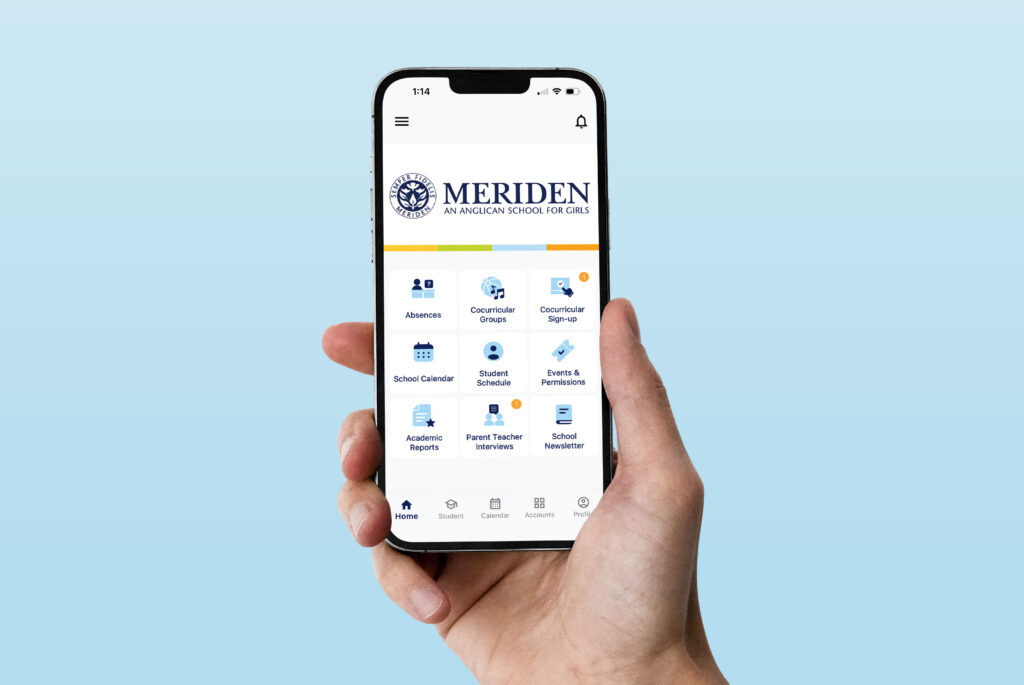
The Meriden Parent App is simple to access and use.
- One time log in
- A clear view of your daughter’s schedule
- Easy co-curricular sign up
- Fast submission of absences
- Simple Parent Teacher Interview bookings
- Convenient access to Academic Reports, School Accounts and Payments
Download the Meriden Parent App using one of the options below:
Option 1
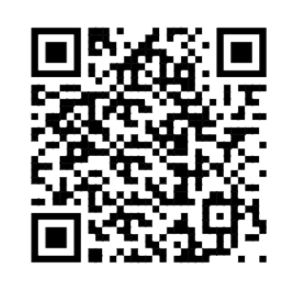
Scan the QR code with your mobile device.
Option 2
Click this link on your mobile device.
Option 3
Search for ‘Parent Orbit’ in the Apple App Store or Google Play Store.Â
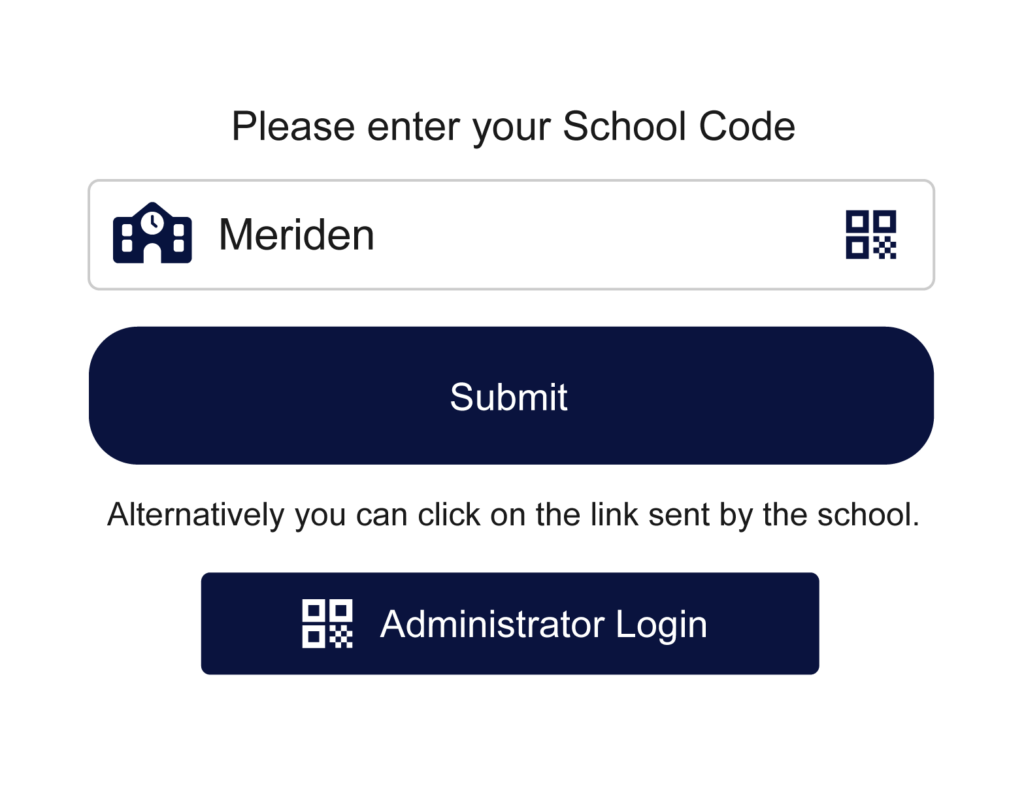
Tap Download/Install, and when asked for a School Code, enter ‘Meriden’.
Set Up Instructions:
Step 1
Open the app and login using your existing Meriden username and password.
If you have forgotten your username or password, see FAQs below or contact Meriden’s ICT Department.
Step 2
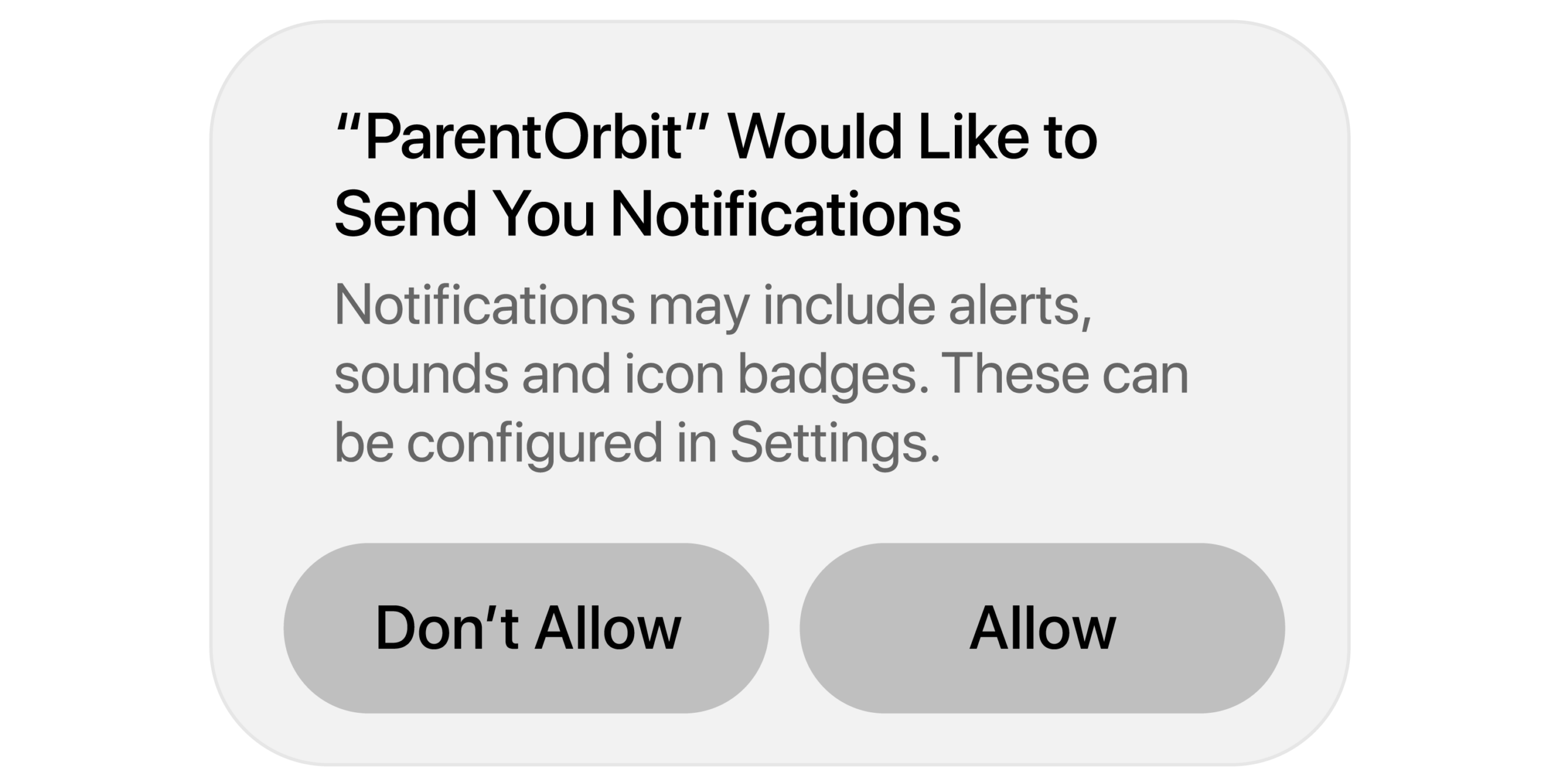
Click ‘Allow’ in the pop-up to enable notifications.
Step 3
Click ‘Allow’ in the blue box to allow access to relevant information.
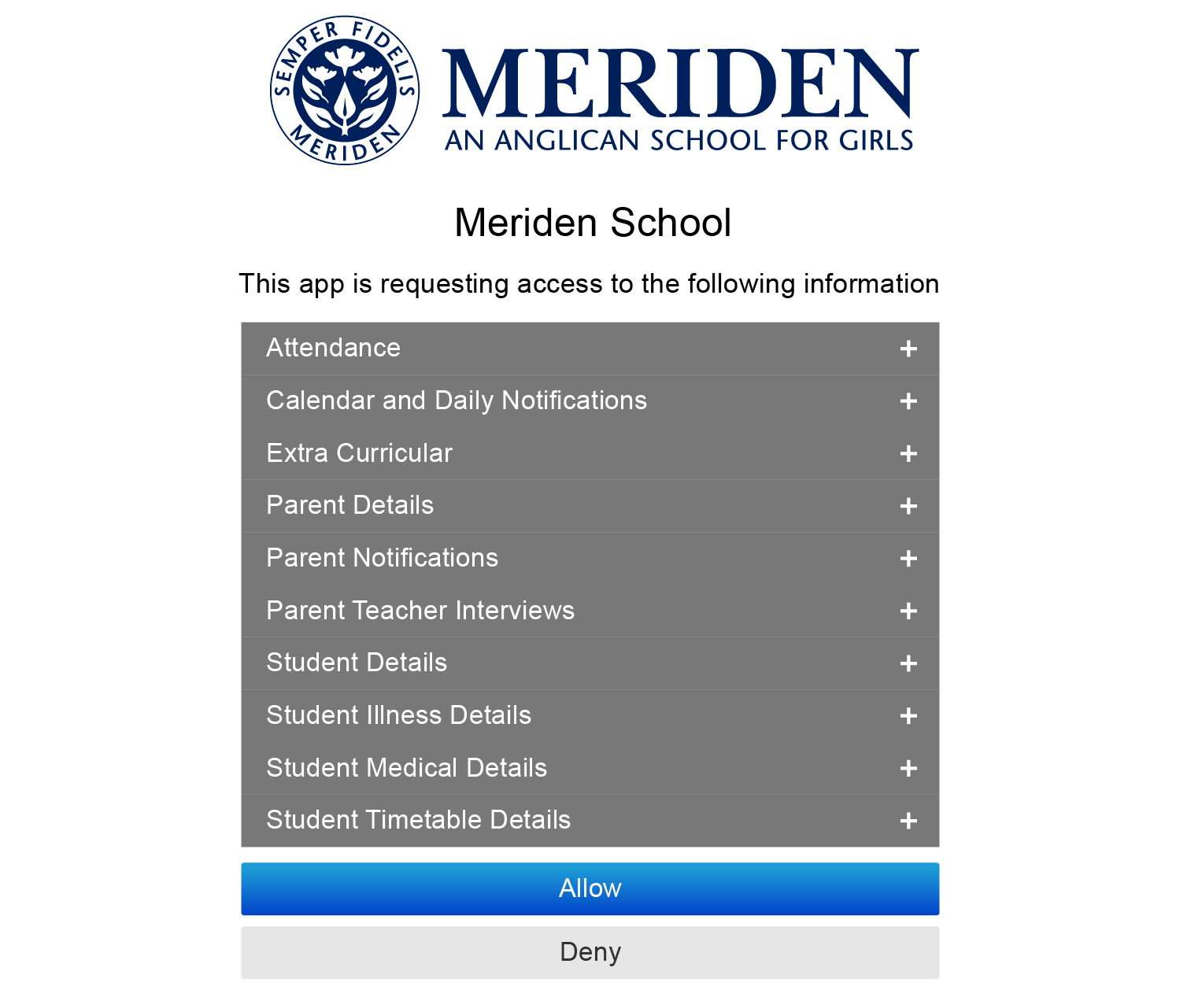
Step 4
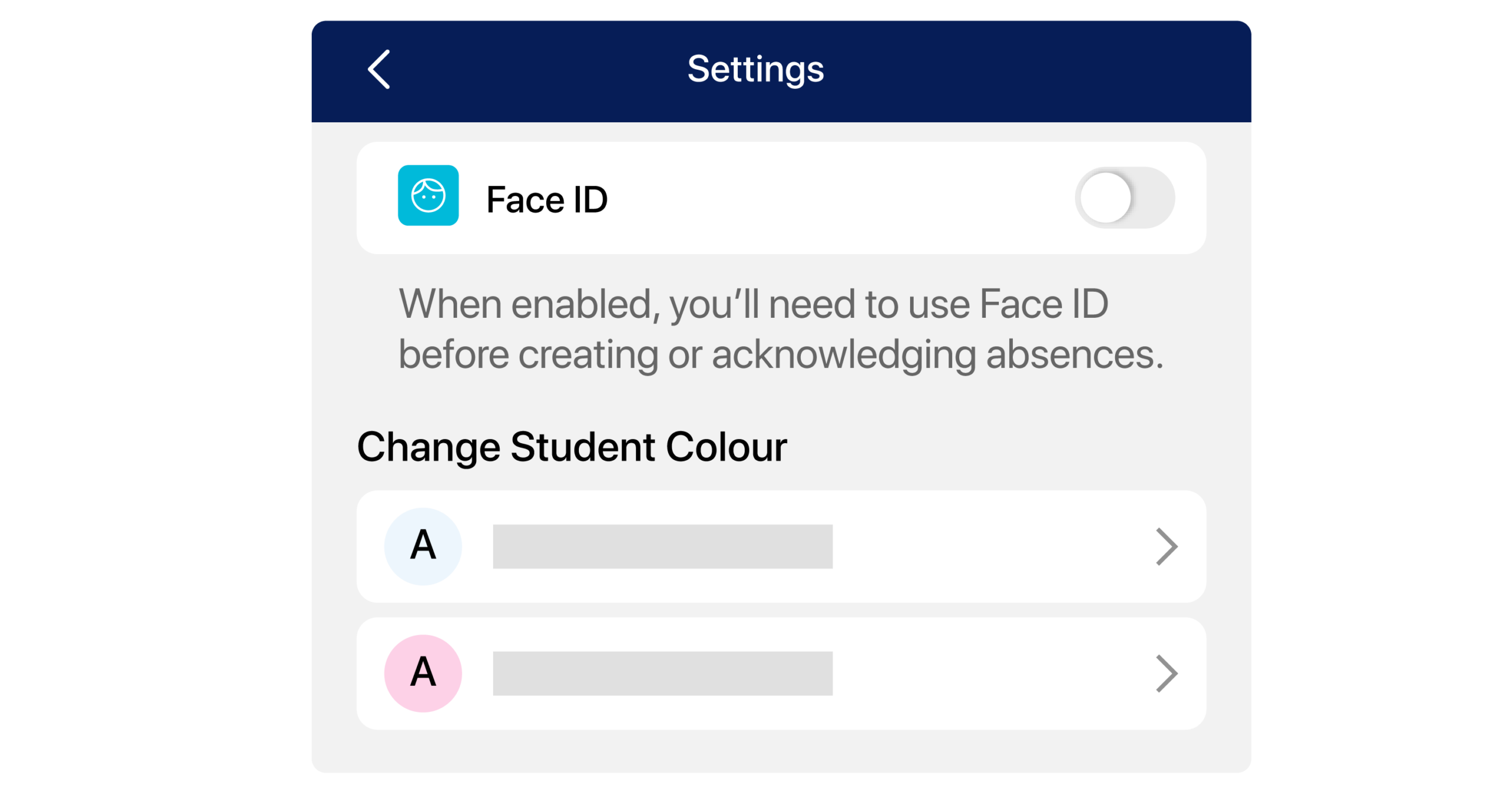
If desired you can access Settings to set up Face ID for absence submissions, and change the student colour if you have more than one daughter attending the school.
To explore the app
Frequently Asked Questions
Download & Getting Started
You can download the Meriden Parent App from the Apple App Store, or the Google Play Store. Search for ‘Parent Orbit’.
When asked for your School Code, enter ‘Meriden’.
Most parents complete setup in under 5 minutes.
The app uses your existing Parent Lounge username and password.
Yes, if both parents use the app, then both need to download it.
Please note that most Meriden families share one username and password.
Login & Password Help
Your username is your parent code with a ‘0’ on the front. Most parents at Meriden have not pre-registered for self service username recovery.
If you do not know your parent code, please contact Meriden’s ICT Department on +61 2 9752 9444 or email enquiries@meriden.nsw.edu.au
Most parents at Meriden have not pre-registered for self-service password reset. If you have never changed your Meriden password, try using your BPAY number (available on your school fees invoice) to login.
If this does not work, please contact Meriden’s ICT Department on +61 2 9752 9444 or email enquiries@meriden.nsw.edu.au for assistance.
Most Meriden families share one username and password. If you have a shared family account, please advise your daughters’ other parent of the updated password.
Yes, click ‘Allow’ when notified that Parent Orbit would like to send you notifications.
No, there is one login per family and all daughters will appear via the same family login.
Using the App
Click on the ‘Absences’ icon on the Meriden Parent App Home screen, and click the blue button at the bottom ‘+ Add Absence’.
Click on the ‘Events & Permissions’ icon on the Meriden Parent App Home screen, and there you will find the information and permissions formerly in Parent Lounge.
No. In the new Meriden Parent App there is no additional login.
The information and permissions formerly in Parent Lounge are now found faster by clicking on the ‘Events & Permissions’ icon.
Click on the ‘Student Schedule’ icon on the Meriden Parent App Home screen. There you will find her eDiary which combines her classes (Senior School students), cocurricular activities and relevant school events.
For school-wide events,click on the ‘School Calendar’ icon on the Meriden Parent App Home screen.
Click on the ‘Cocurricular Sign-up’ icon on the Meriden Parent App Home screen, and there you will be able to sign up and make payments (where relevant) for the available activities.
Your daughter’s academic reports, when published, can be found by clicking on the ‘Academic Reports’ icon on the Meriden Parent App Home screen.
Click on the ‘Accounts’ menu icon at the bottom of the Meriden Parent App Home screen.
There you will find two options. Click ‘School Fees Account’ to view your account statements and payment plans, or to make fee payments.
Click the menu tab (3 horizontal lines) in the top left of the app screen, and select ‘School Links’. Amongst other important information, you will see ‘School Policies’.
Yes. Important communications will continue to be sent via email.
However, please ensure you ‘Allow’ notifications on the app so you do not miss anything.
If further assistance is required, please contact Meriden’s ICT Department on +61 2 9752 9444 or email enquiries@meriden.nsw.edu.au